

Updated: 13 Aug 2026
Originally Published: 16 Jan 2024
How to wipe an SSD on Windows 11 or Windows 10? The safest option is to use a data wiping tool that understands how SSDs work and can erase the full drive, not just remove visible files.
Standard deletion, formatting or a Windows reset may make data harder to find, but they don’t guarantee that everything is gone beyond recovery. SSDs use flash memory, wear leveling and internal controllers, so securely removing data from them requires a different approach than wiping traditional hard drives.
With BCWipe Total WipeOut, you can securely wipe SSDs before disposal, decommissioning or repurposing. You can also generate a tamper-proof erasure report for audits, ITAD workflows or compliance reviews. See the step-by-step instructions for wiping an SSD on Windows 11 or Windows 10 below.
What Is an SSD & How Is It Different from an HDD
Solid-state drives (SSDs) use flash memory and an internal controller rather than the spinning disks and read/write heads found in traditional hard drives (HDDs). The result is faster performance and fewer mechanical failure points, but also a fundamentally different way of storing data, which matters when it comes time to erase it.
Compared to traditional hard drives, SSDs offer:
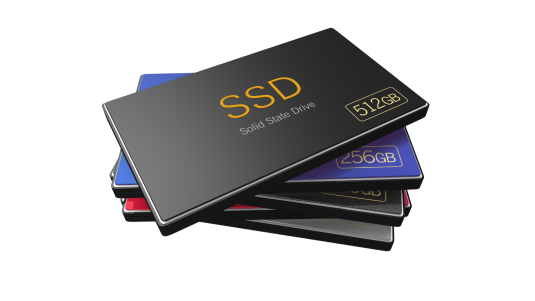
- Reduced Latency – non-volatile flash memory replaces spinning disks, which means faster boot times, quicker program loading and faster file saving.
- Enhanced Performance – with no moving parts, SSDs avoid the mechanical wear that HDDs are prone to. A flash controller and NAND flash memory chips handle storage operations instead.
This same architecture is also why SSDs need a different approach to data wiping. Traditional overwriting tools were built for HDDs, where every file lives at a known physical location, an assumption that no longer holds on flash storage.
| HDD Wiping | SSD Wiping | |
|---|---|---|
| Storage Mechanism | Magnetic platters accessed by mechanical read/write heads | Flash memory cells managed by an internal controller |
| Data Location | Each file lives at a fixed physical address | Data is distributed across cells and moved by wear leveling |
| Relevant Standard | NIST SP 800-88 Rev. 2 (Clear / Purge) | NIST SP 800-88 Rev. 2 (Purge) & IEEE 2883-2022 |
NIST SP 800-88 Rev. 2 (finalized September 2025) supersedes the 2014 Rev. 1 with updated guidance for modern storage media. For SSDs, NVMe and other flash technologies, it recommends purge-level sanitization, aligned with IEEE 2883-2022 (Standard for Sanitizing Storage).
NIST SP 800-88 Rev. 2 – Guidelines for Media Sanitization
Challenges of Wiping SSDs on Windows 11 & 10
Securely erasing data on SSDs involves overcoming specific challenges, making the process more intricate than simply pressing the delete button.
Here are five challenges that users face when wiping data on SSDs:
- Data Allocation – unlike traditional hard drives, SSDs distribute data across memory cells, rather than storing it in fixed physical locations. This process makes it challenging to pinpoint and overwrite specific file locations.
- Data Compression – SSDs often use data compression technology, which complicates the erasure process, as traditional methods may not work well on compressed data.
- Drive Degradation – SSDs use NAND flash memory, which has a limited number of write and erase cycles. Aggressive overwrite passes that work fine on HDDs can shorten an SSD’s lifespan unnecessarily.
- Freeze Lock – a safeguard designed to prevent accidental overwrites can also block legitimate secure-erase commands once activated. A wiping tool needs to handle this state before erasure can proceed.
- Compliance – meeting compliance regulations requires secure erasure methods with specific requirements for each regulation. For instance, NIST SP 800-88 mandates the use of the User Data Erase command, which is not available on all software.
What Should SSD Wiping Software Do?
Wiping software built for SSDs needs to do more than just overwrite data. It needs to work with the drive’s controller rather than against it, handle compression and freeze locks, manage write cycles carefully and meet the compliance commands that SSDs actually expose at the firmware level. BCWipe Total WipeOut is designed around those requirements.
What that looks like in practice:
- Whole Drive Erasure – wipe entire SSDs in a single operation, without needing to locate individual files first. Useful for decommissioning, ITAD workflows and end-of-life disposal.
- Wiping Schemes That Suit SSDs – use wiping schemes designed to combat data compression to minimize the impact on drive lifespan while maintaining efficacy.
- TRIM Support – ensure SSD performance by using software with TRIM support, thereby reducing concerns about degradation.
- Freeze Lock Removal – streamline the erasure process with software that automatically unfreezes drives that are in frozen mode.
- Compliance – adhere to NIST regulations with a preconfigured wiping policy, including support for the NVMe User Data Erase command.
How to Wipe an SSD on Windows 11 & 10: Step-by-Step Instructions
Now that you understand the advantages of using a wiping solution to overcome the challenges of erasing data on NVMe drives, let’s guide you through the process using an example tool—Jetico’s BCWipe Total WipeOut. Of course, you are free to opt for the solution that best suits your needs.
Step 1: Starting Off
Before proceeding, ensure BCWipe Total WipeOut is installed. You can find additional information on software usage in our user guide. If you don’t want to purchase BCWipe yet, why not claim your 21-day free trial? For MacBook users, please refer to these alternative step-by-step instructions.
- Access the Start menu
- Select ‘BCWipe Total WipeOut’
- Click on ‘BCWipe Total WipeOut Configuration Wizard’
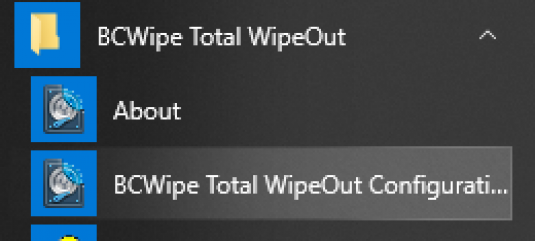
- Press ‘OK’ when asked for elevation
Step 2: Move BCWipe Total WipeOut to a USB Drive
Since you’ll be wiping the operating system, the next step is to transfer BCWipe Total WipeOut to an external USB drive.
- Select ‘Bootable USB drive’
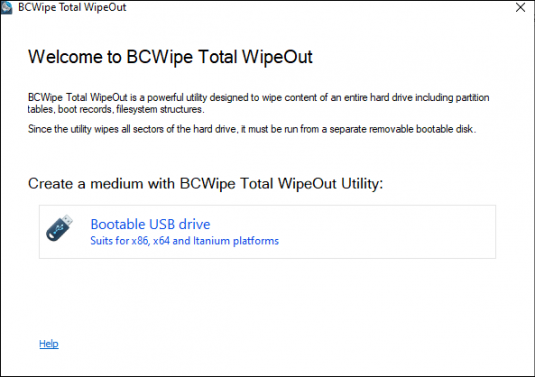
- Insert the USB drive into your computer
- Click on ‘Next’
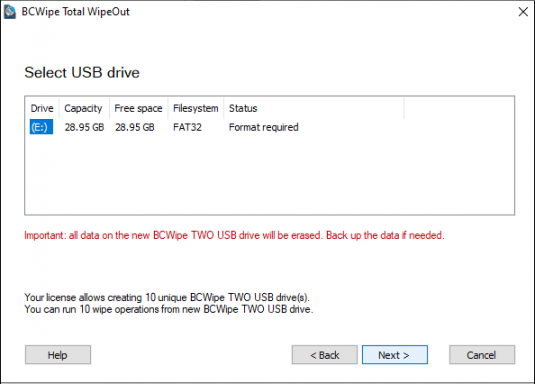
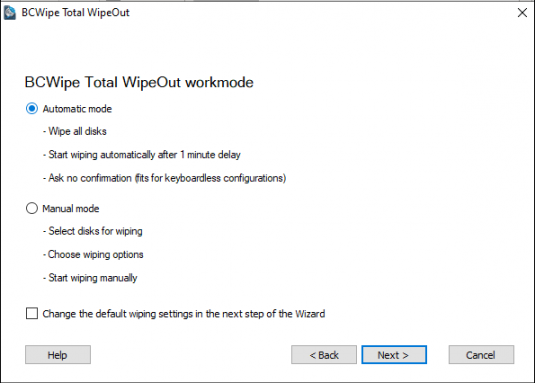
Step 3: Use Automatic Mode
This step provides instructions on how to wipe your system with BCWipe Total WipeOut’s default settings. For manual mode, please refer to this video.
- Select ‘Automatic mode’
- Click on ‘Next’
Step 4: Set Up Log File
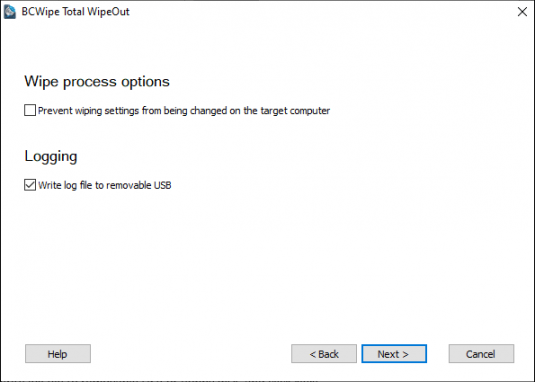
You can opt to create log files for a record of prior deletions.
- Choose ‘Write log file to removable USB’
- Select ‘Next’
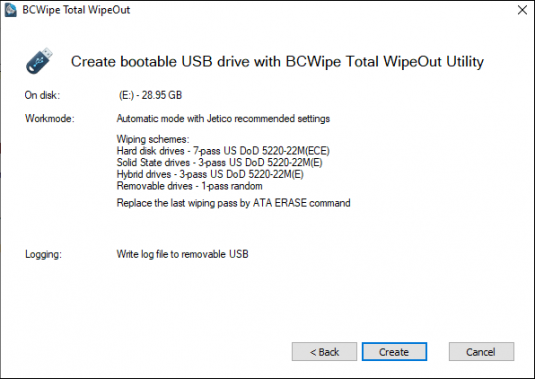
- Browse the summary
- Click on ‘Create’
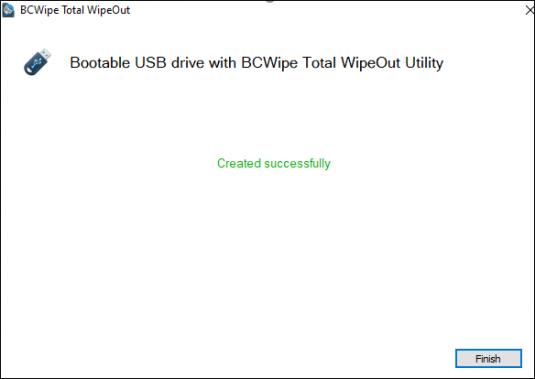
- Press ‘Finish’ after completion
Step 5: Wipe Your Drive
The USB drive is ready for wiping. You can now boot the system you want to erase with this USB.
How Do You Reinstall Windows After Wiping an SSD?
Following the above steps will wipe all data, including the operating system. If you want to use your computer again, you must first reinstall your operating system. Find step-by-step instructions here.
To learn more about wiping hard drives, read our comprehensive guide.
Happy Wiping!
Frequently Asked Questions (FAQs)
SSDs manage data dynamically using wear leveling and internal controllers, which means data is not stored in fixed physical locations. As a result, traditional overwriting methods designed for HDDs may not reach all data areas on an SSD.
No. Formatting or resetting Windows removes file system references but does not guarantee that underlying data is erased. Recoverable remnants can remain unless an SSD-aware wiping method is used.
TRIM informs the SSD which blocks are no longer in use, allowing the drive to manage them internally. While TRIM improves performance, it does not verify or document that data has been securely removed, which is why additional wiping steps are often required.
Free space wiping is useful when securely deleting files on an active system. It helps remove remnants left behind after file deletion, especially on systems where sensitive data is regularly created and removed.
BCWipe is designed for securely deleting selected files and wiping free space on active Windows systems. For full-drive erasure, including system disks and decommissioned devices, BCWipe Total WipeOut provides SSD-aware wiping methods and generates verification reports for auditing and compliance.
Related Articles
Data Sanitization 5 Common Myths
Hardware Decommissioning Process: A 5-Step Checklist
The Ultimate Guide to Deleting Files Permanently
IRS Publication 4812 & How to Comply with Wiping Standards
DoD 5220.22-M Explained – Data Erasure Standards
NIST SP 800-88 Guidelines for Media Sanitization Explained
How to Delete Files on SSD
How to Wipe a Hard Drive on a Dead Computer