

Updated: 13 Aug 2026
Originally Published: 28 Dec 2023
How to wipe a hard drive on a dead computer? It may sound like a hopeless task, but it’s certainly possible. In fact, it’s strongly advised that you securely erase all data from dead computers before disposing of, selling or taking them to be repaired. If you don’t, your potentially sensitive information could still be recovered by third parties.
Industry best practices from NIST recommend logical or physical sanitization even when devices are no longer operational, as data can often still be recovered directly from storage media.
NIST SP 800-88 Rev. 2 – Guidelines for Media Sanitization
In this blog, you can learn exactly what is meant by ‘dead computers’, which methods and tools can be used for secure data removal, and how you can wipe Windows or Mac hard drives for different types of malfunctioning computers.
What Do We Mean by a ‘Dead Computer’?
When a computer is ‘dead’ then it’s simply no longer functioning. How do computers meet this fate?
Here’s 3 typical causes:
- Software problems, such as the operating system suffering a critical error
- Hardware failure (also known as fatal device hardware error), such as bad sectors or motherboard short circuit
- Faulty power supply

What Tools Do You Need to Wipe a Hard Drive?
As is the case with removing data from a regular hard drive, owners of dead computers are presented with the choice of wiping or physically destroying the drive.
When it comes to the reliability of data erasure, wiping is the more secure choice. Avoiding methods of physical destruction, including degaussing and shredding, also gives computer owners the option of repurposing the drive.
Trusted data wiping solutions, such as BCWipe Total WipeOut, have been designed to erase all information from drives beyond forensic recovery. Whether the cause of your dead computer is related to software or hardware, you can still use wiping software to effectively remove data.
How to Wipe a Hard Drive on a Dead Computer for Windows Users
We will now list step-by-step instructions for how Windows users can wipe hard drives on dead computers. First, you can find information on how to create a USB stick for wiping, which is a compulsory step. Depending on the cause of your malfunctioning PC, you can then check the instructions for computers that have either software-based or hardware-based issues.
TIP: Don’t know if your faulty computer is caused by software or hardware?
Follow the software instructions first, and if you don’t succeed then proceed to the hardware steps.
Create a USB Stick for Wiping a Hard Drive on a Dead Computer
Step 1: Getting Started
You will need to use a working computer to create the USB stick for wiping.
Before you proceed, please make sure you have installed BCWipe Total WipeOut. If you’re not ready to purchase the software yet, why not try it out with a 21-day free trial?
- Access the Start menu
- Select ‘BCWipe Total WipeOut’
- Open ‘BCWipe Total WipeOut Configuration Wizard’
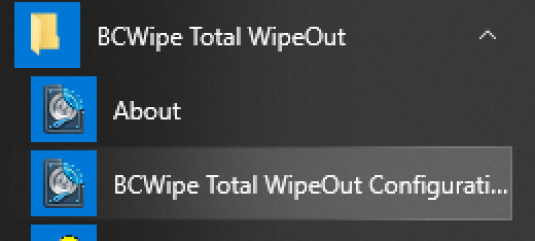
- Click ‘OK’ when asked for elevation
Step 2: Move Software to a USB Drive
BCWipe Total WipeOut must be put on to a USB drive (USB external eraser) in order to wipe the operating system from your dead computer.
- Select ‘Bootable USB drive’
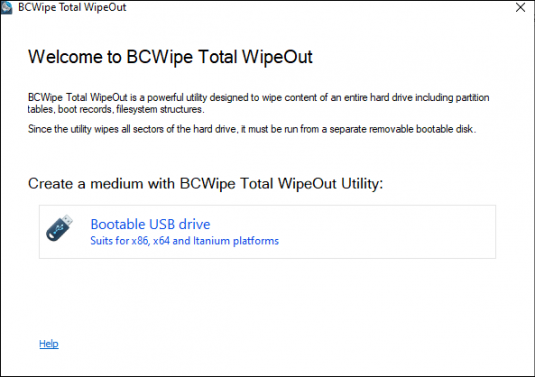
- Connect the USB drive to a working computer
- Click on ‘Next’
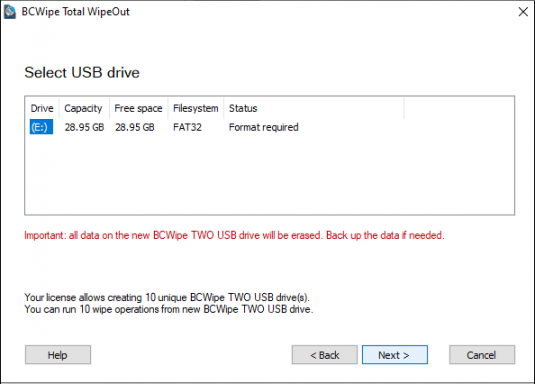
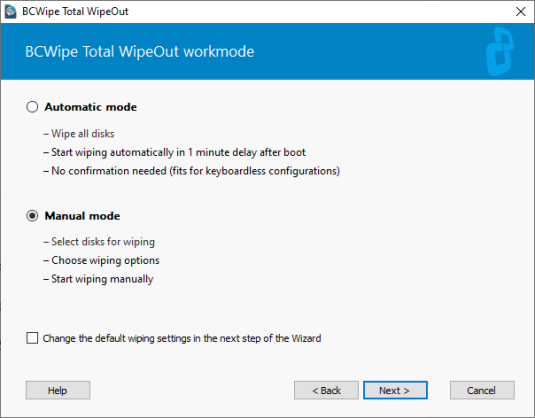
Step 3: Select Manual Mode
In order to wipe the hard drive on your dead computer, you must configure the USB in manual mode.
- Choose ‘Manual mode’
- Select ‘Next’
Step 4: Enable Log File
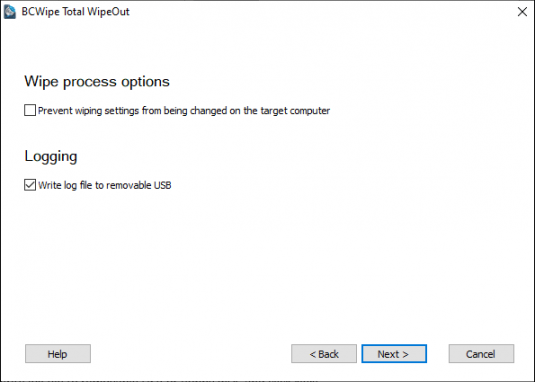
You can now enable the option to create log files if you wish. Why would you want to do this? Logging is useful if you want to keep a record of what has been deleted.
- Select ‘Write log file to removable USB’
- Click on ‘Next’
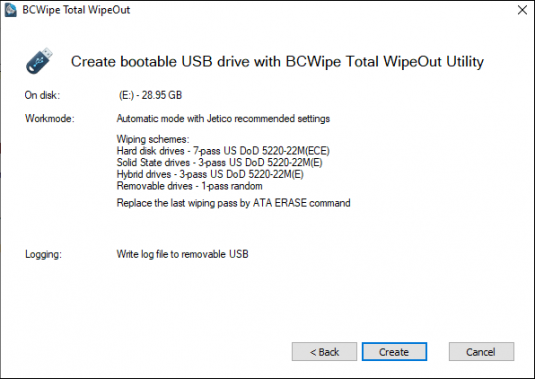
- Check the summary
- Press ‘Create’
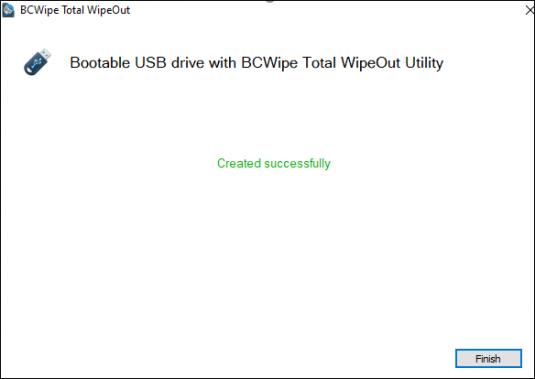
- Click on ‘Finish’ once the process is completed
Instructions for Dead Computers with Software-Based Issues
For owners of computers that have died due to software problems, there’s only 1 step left:
- Plug in the USB stick and run BCWipe Total WipeOut at boot time
Reinstall Your OS After Wiping
If you followed the steps listed above then all data from your hard drive has been removed. This includes the operating system, file system, partition information and hidden disk areas.
To use your computer again, you must first reinstall the operating system. Find step-by-step instructions on how to do that here.
Instructions for Dead Computers with Hardware-Based Issues
For owners of computers that have died due to hardware issues, there’s still a few more things left to do. But before you proceed any further, make sure you follow the steps listed in the Create a USB Stick for Wiping section.
Step 1: Unplug the Drive
If your dead computer has suffered from a hardware problem then you won’t be able to get the system running again. The only way to wipe the hard drive is to remove it from the PC.
- Unplug all cables from your computer and place it on an easily accessible surface
- Unscrew the side panel and remove it
- Remove the power and data cables from your hard drive
- Remove the hard drive from the PC
Step 2: Attach Drive to a Working Computer
Now your hard drive has been removed, you have 2 options to attach it to a working computer:
- Install the hard drive into a working PC directly
- Use a cable to attach the hard drive to a working computer, such as USB to SATA
Step 3: Run Wiping Process
Now you can run the wiping process on the selected drive.
How to Wipe a Hard Drive on a Dead Computer for Mac Users
Wiping a hard drive on a dead computer with BCWipe Total WipeOut is almost exactly the same for Mac users as the process listed above. The only difference is the Create a USB Stick for Wiping section, which must obviously be carried out on a different interface. Find the step-by-step instructions for how to create a wiping USB drive on a Mac here.
Further Reading & Technical Support
Whatever the issue was with your dead computer, you can now consider it wiped beyond forensic recovery.
Want to learn more about wiping files, folders and drives? Check our ultimate guide.
Need any help with wiping a hard drive on a dead computer or want to learn more about this topic? Contact our Data Protection Specialist.
Happy Wiping!
Frequently Asked Questions (FAQs)
A computer is considered dead when it cannot boot into the operating system due to hardware failure, corrupted system files or severe software issues. Even if the system is unusable, the hard drive often still contains recoverable data.
Yes. A non-booting computer can be wiped using a bootable USB or external media that runs independently of the installed operating system. Tools such as BCWipe Total WipeOut are designed specifically for this purpose.
Formatting only removes file system structures and does not overwrite the underlying data. Without secure wiping, sensitive information can still be recovered using forensic or recovery tools.
A full-disk wipe is required when a device is being disposed of, resold, donated or transferred to another owner. It ensures all data, including hidden areas and system remnants, is permanently removed beyond recovery.
Verification reports and certificates generated by trusted wiping software provide documented proof that the drive was erased using approved methods. BCWipe Total WipeOut generates audit-ready reports that support compliance, internal reviews and regulatory requirements.
Related Articles
Data Sanitization 5 Common Myths
Hardware Decommissioning Process: A 5-Step Checklist
The Ultimate Guide to Deleting Files Permanently
IRS Publication 4812 & How to Comply with Wiping Standards
DoD 5220.22-M Explained – Data Erasure Standards
NIST SP 800-88 Guidelines for Media Sanitization Explained
IEEE 2883-2022 Standard for Sanitizing Storage
How to Wipe an SSD on Windows 11 & 10
How to Wipe an NVMe Drive