

Updated: 14 Aug 2026
Originally Published: 26 Jan 2023
What are TMP files? TMP files are named after the file extension ‘.TMP’, and are commonly known as ‘temporary’ or ‘temp’ files. TMP files are files that are typically created for backup, storage or cache purposes by a program or operating system. These files are normally generated to store information when memory is needed for another task, or to prevent data loss when programs perform certain functions.
Here’s one common example. If you use Microsoft Word with AutoSave enabled, Word creates a TMP file during your session to save the document to a set location on your drive. If your computer shuts down unexpectedly, that TMP file lets you recover the document you were working on.
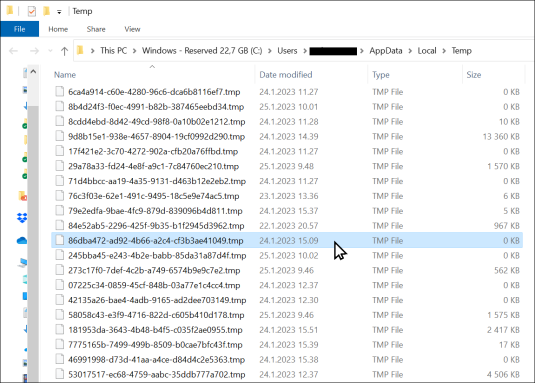
In this blog, we summarize the key information about TMP files. We then list the pros and cons of using 2 different methods of deleting TMP files: Microsoft’s Disk Cleanup and independent data wiping software. Finally, we provide step-by-step instructions on how to remove TMP files with each solution.
What Do TMP Files Do?
TMP files give programs a temporary place to hold data while they run. This process helps prevent data loss and keeps applications working when memory is tight. Their main uses include:
- Resource Management – when a program needs more memory than is available, it can offload data to a temporary file on the drive and read it back as needed, instead of keeping everything in RAM.
- Backup & Recovery – many programs, such as Microsoft Word, save AutoSave versions to a TMP file, so your work can be recovered if the program or system crashes.
- Safe Saving – to avoid corrupting a file if a save is interrupted, some applications write changes to a new TMP file first, then replace the original once the save is complete.
Where Are TMP Files Stored?
The default location of TMP files depends on your operating system:
| Operating System | Default Temporary File Location |
|---|---|
| Windows | C:\Users\AppData\Local\Temp |
| macOS | /private/var/folders/ (a per-user folder managed by the system) |
| Linux | /tmp, cleared on reboot, and /var/tmp for files that persist between reboots |
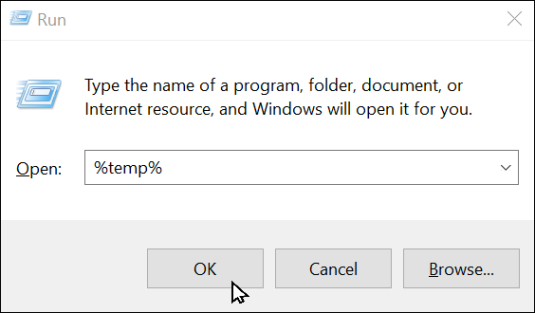
For quick access on Windows, try out these 2 steps:
- On your keyboard, press the Windows + R keys at the same time.
- In the Open field, type ’%temp%‘, then press ENTER. The temp folder will open.
How to Open a TMP File?
TMP files aren’t really intended to be opened, but that doesn’t mean it’s impossible to do so. Generally, you can open a TMP file with the same application that created it on your system.
Here are some instructions from wikiHow on how to open TMP files.
How Long Do TMP Files Stay in Your System?
Most of the time, TMP files are deleted in the following instances:
- The program that created the TMP file is no longer using it
- You close the program that created the TMP file
- You turn off your computer
Unfortunately, TMP files are not always removed automatically. The most common reason for this is when a program closes improperly. If an application crashes, freezes, or is terminated unexpectedly (for example, during a power outage), it doesn’t get the chance to execute its cleanup routine to delete the temporary files it created. Over time, these orphaned files accumulate, consuming valuable disk space and potentially holding fragments of sensitive data, which makes regular manual cleanup a necessary maintenance task.
It’s also worth noting that TMP files that are automatically removed still leave behind some residual data. To ensure no data from your TMP files remains on your system, remember to wipe free space with a data wiping solution.
Can I Delete TMP Files?
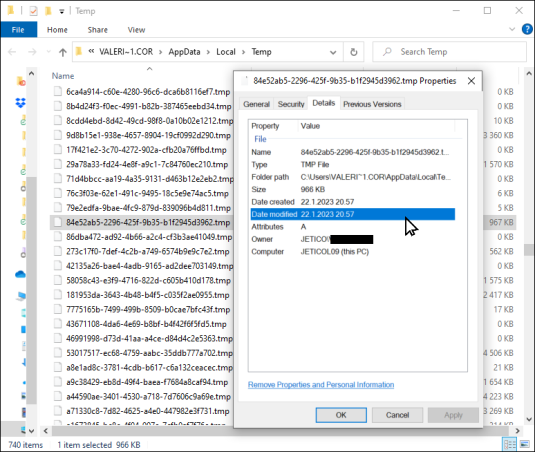
Yes, but with caution. While it is generally safe to delete older TMP files (those created days or weeks ago), you must avoid deleting files that are currently in use by a running program. Deleting an active TMP file can cause the associated application to crash, lose data, or behave unpredictably. A best practice is to close all open applications before manually cleaning out your temp folder. Alternatively, you can check the metadata by right-clicking on the file and selecting ‘Properties’. This will let you know when the file was created and last modified.
Best Practices for Deleting TMP Files
Before you begin deleting temporary files, follow these simple steps to avoid causing issues with your running applications:
- Save Your Work – Ensure all your work in open applications is saved.
- Close All Programs – Shut down all non-essential applications to release their hold on any temporary files.
- Consider a Reboot – For a truly clean slate, restarting your computer ensures that no programs are actively using temporary files and often clears out the main temp folder automatically.
How Should I Delete TMP Files?
Here, we focus on 2 solutions for deleting your TMP files: Microsoft’s Disk Cleanup and data wiping software. If you want more information on why you should delete your TMP files, check out our blog on How to Permanently Delete Temporary Files on Windows 11.
Using Windows Disk Cleanup
Disk Cleanup is a maintenance utility included in Windows that is designed to free up space on a computer’s hard drive. Skip to step-by-step instructions.
👍 Pros:
– Included in Windows 10 and 11, which means it’s free
– Simple and quick to use
👎 Cons:
– Disk Cleanup does not permanently delete data
– Leaves behind data remanence, which gives third parties the opportunity to restore and access your potentially sensitive information
Using Data Wiping Software
Trusted data wiping solutions are designed to securely erase files beyond forensic recovery. Skip to step-by-step instructions.
👍 Pros:
– Permanently deletes your TMP files, including data remanence
– Ensures your information remains private
👎 Cons:
– Not included with your operating system, as this is an independent software
– Paid solution, but free trials could be available
How to Delete TMP Files with Disk Cleanup
Please follow these step-by-step instructions to remove your TMP files with Microsoft’s Disk Cleanup.
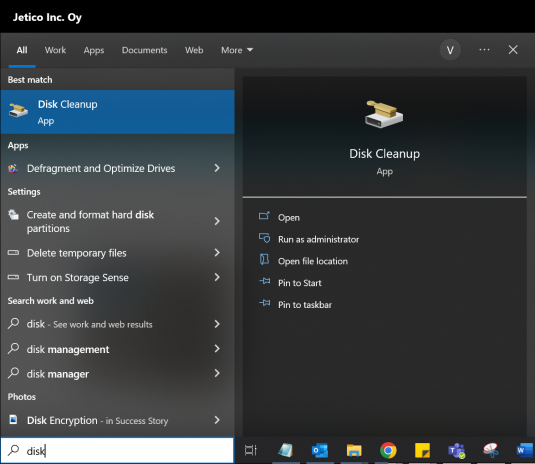
- Type “disk cleanup” in the search box within your taskbar
- Select ‘Disk Cleanup’ from the list of results
- Select the drive you want to clean up, then click ‘OK’
- Under ‘Files to delete’, check ‘Temporary files’
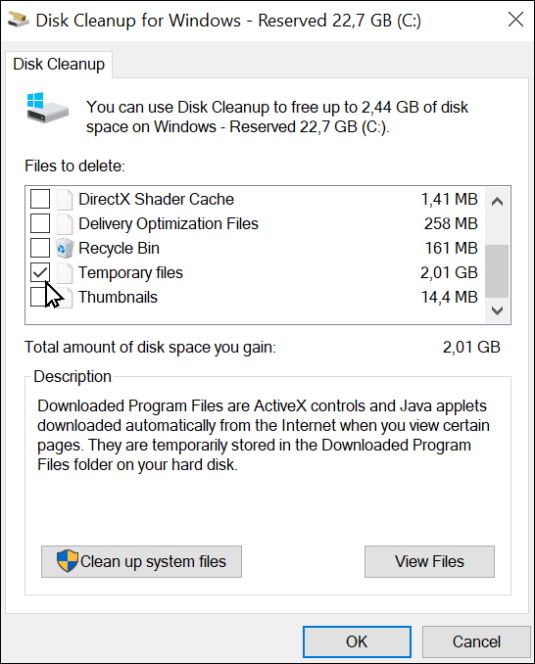
- Press ‘OK’ to begin the operation
How to Delete TMP Files with Data Wiping Software
We are using BCWipe as an example in these step-by-step instructions, which is a long-trusted solution that’s been used by the U.S. Department of Defense for over 20 years.
Step 1: Running BCWipe as Administrator
First, you need to install BCWipe. Check out this how-to video if you want help with installing the software.
Not sure if you want to purchase BCWipe yet? That’s OK — get started with your free trial today.
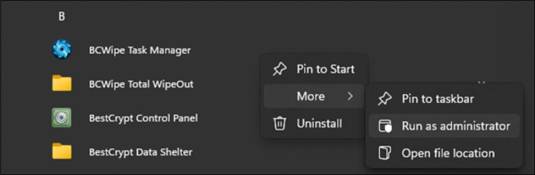
- Launch BCWipe by going to ‘Start’ –> ‘BCWipe’
- Right-click ‘BCWipe Control Panel’
- Select ‘More’ and choose ‘Run as administrator’
Step 2: Wiping TMP Files Using Default Settings
Begin the wiping operation with one random wiping pass scheme.
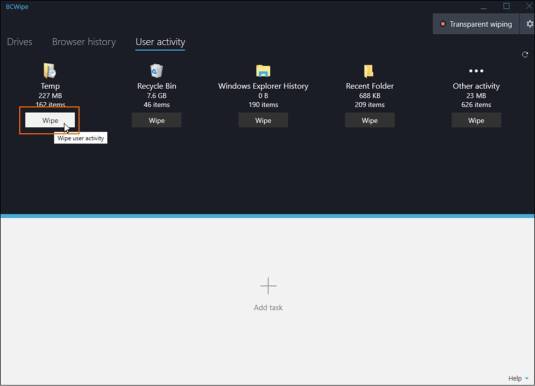
- Select the ‘User activity’ tab
- Under the Temp folder icon, click on the ‘Wipe’ button
- Click ‘Start’ to begin the wiping operation immediately with one random wiping pass scheme
Step 3: Selecting a Custom Wiping Scheme (Optional)
If you want to manually select the wiping scheme used for the operation, then please follow these additional instructions.
- Click on the ‘Advanced’ task settings button
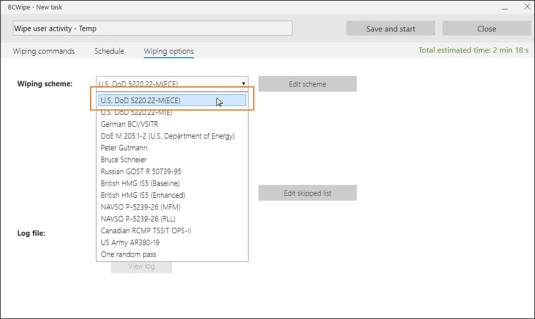
- Select the ‘Wiping options’ tab
- Under ‘Wiping scheme’, use the drop-down menu to choose the wiping scheme of your choice
- Click ‘Save and start’
Step 4: Additional Considerations for SSDs
This is an optional step that only applies to users wiping data from solid-state drives (SSD).
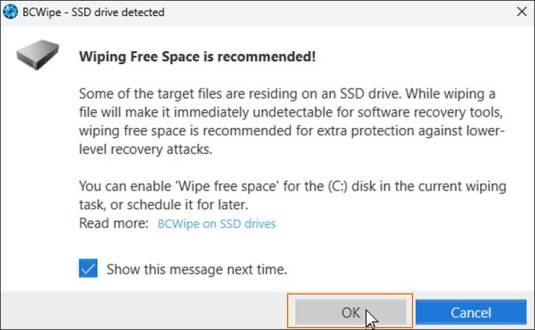
- If you are using an SSD drive, you will see a message to run the ‘Wipe free space’ task to prevent data recovery – Here are instructions on how to wipe free space after deleting your TMP files
- Click ‘OK’ to dismiss the message
Step 5: Completing the Wiping Process
Now you can relax and wait for your TMP files to be wiped.
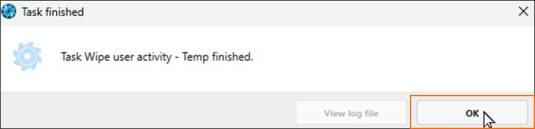
- You will receive a notification once the task has finished
- Click ‘OK’ to dismiss the message
Further Reading
No matter which method you used to remove those unneeded TMP files, your system will be feeling a bit lighter now.
To find out more about data remanence, check out our blog What Is Data Remanence & How to Remove It in 5 Easy Steps.
Happy Wiping!
Frequently Asked Questions (FAQs)
TMP files are created by applications and operating systems to temporarily store data during active processes. They help prevent data loss, improve performance and manage memory while programs are running. In most cases, these files are meant to be short-lived and removed automatically once they are no longer needed.
Yes, in most cases it is safe to delete TMP files, especially those that are days or weeks old. You should avoid deleting files that are actively being used by a running program, as this may cause errors or crashes. Checking a file’s creation or modification date can help you decide safely.
Over time, unused TMP files can accumulate and consume disk space. More importantly, they may contain fragments of sensitive information, such as document content, application data or traces of user activity. Regular cleanup helps improve system performance and reduces privacy risks.
Disk Cleanup removes TMP files at the file-system level but does not permanently erase the underlying data. Secure data wiping overwrites the data itself, eliminating residual traces that could otherwise be recovered. For users concerned about privacy or compliance, wiping provides a higher level of assurance.
BCWipe is designed to securely wipe selected files, folders and user activity, including TMP files, beyond forensic recovery. It is useful when you want to ensure that temporary data is permanently removed rather than just deleted, especially in security-focused or compliance-driven environments.