Quick Start
This article shows how to run your first search in BCWipe Search. In this example, you will find recently created documents containing the word invoice, review the results, and optionally securely erase files you no longer need.
NOTE: After installation, BCWipe Search needs time to build its initial file index. Search results may be incomplete until indexing finishes. For details, see How It Works.
Before starting, make sure BCWipe Search is enabled. See How to Enable Search in BCWipe.
Step 1. Open BCWipe Search
Open BCWipe and select Search in the side panel. Click Discover Now to launch the Data Discovery Module.
Alternatively, open the Windows Start menu and select Data Discovery Module.
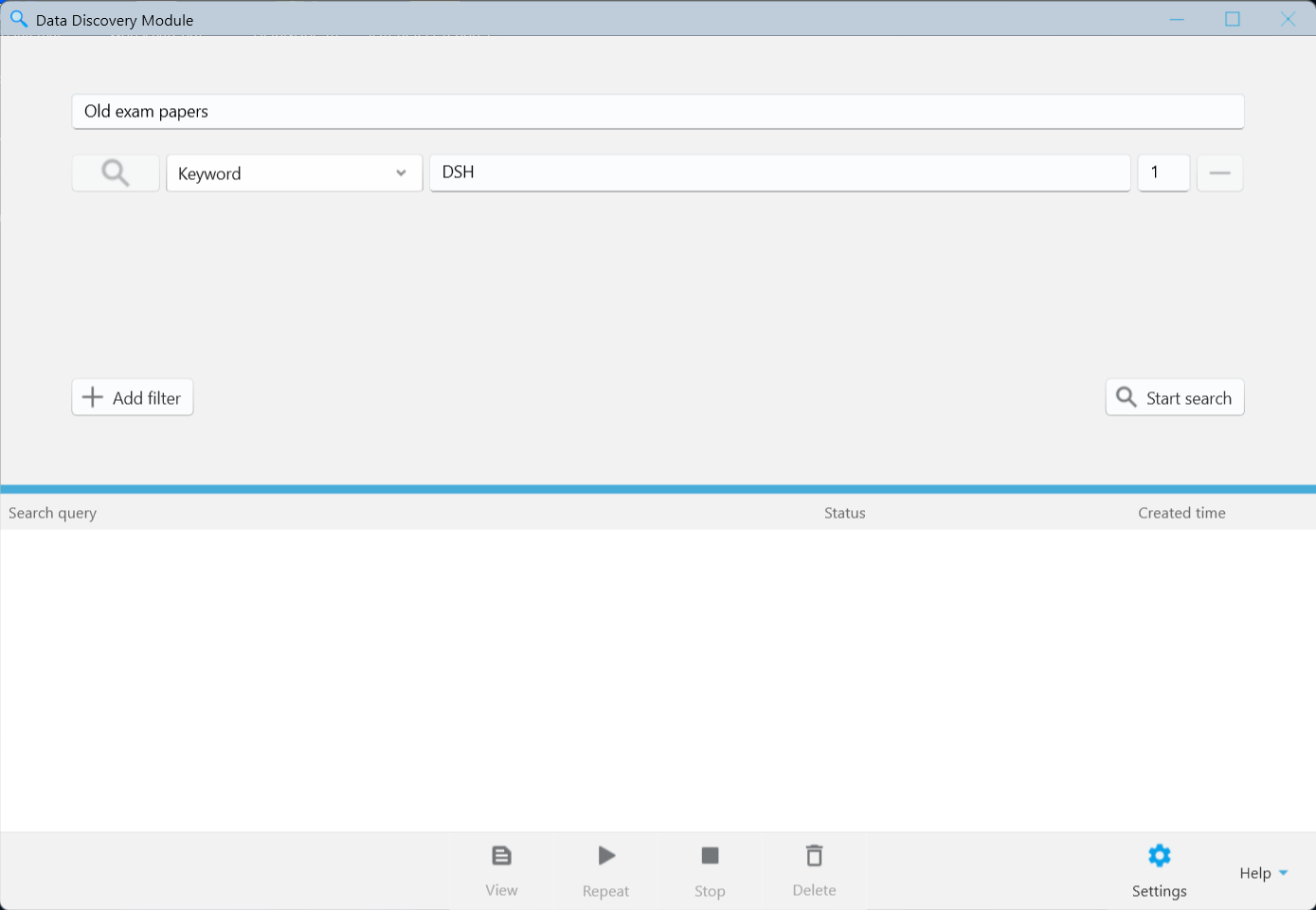
Step 2. Name Your Search (Optional)
In the Query name field, enter a descriptive name, such as Recent invoices.
This name helps you identify the search later. If you leave the field empty, BCWipe Search generates a name automatically based on the first filter.
Step 3. Configure Search Filters
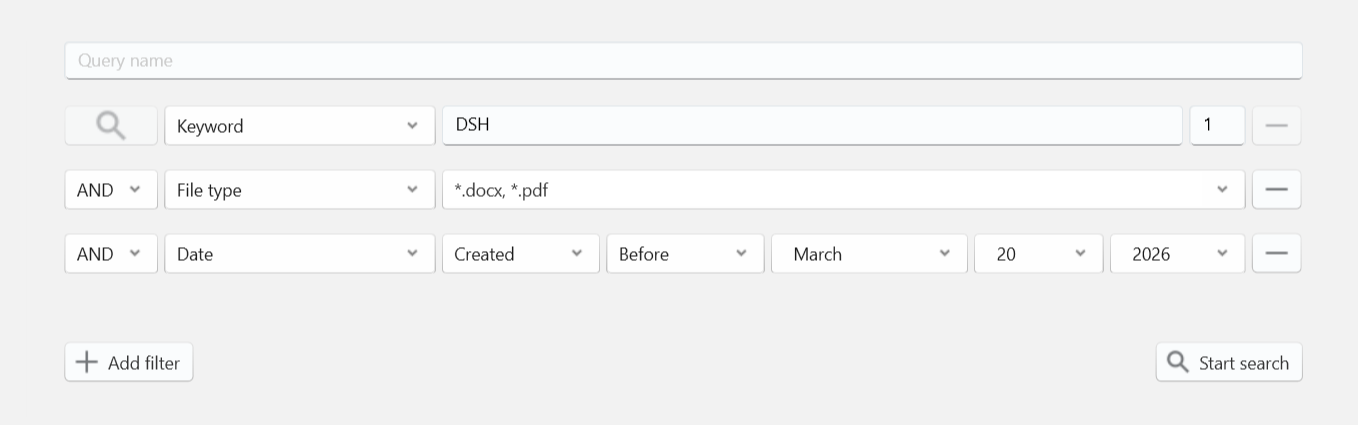
To find recently created PDF and Word documents containing the word invoice, configure three filters:
- Keyword: Enter invoice in the value field. Keyword is the default filter.
- File Type: Click Add filter, select File Type, and choose .pdf and .docx. Clear any other file types selected by default.
- Date: Click Add filter, select Date, and choose Created and After. Specify the earliest creation date you want to include.
Combine the filters using AND, so that only files meeting all three conditions appear in the results.
For details, see Search Filters by Type of Information and Search Filters by File Attributes.
Step 4. Start the Search
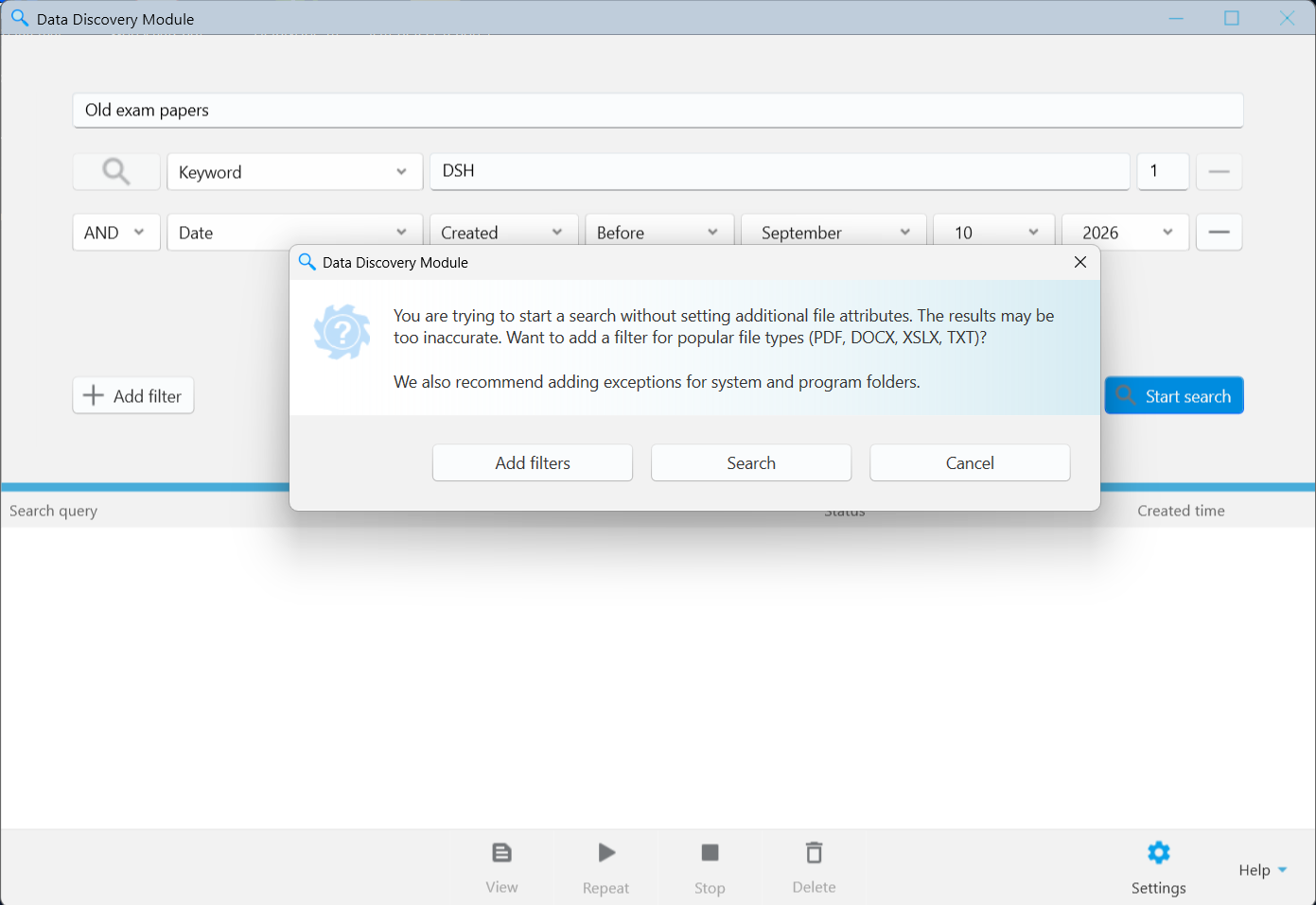
Click Start search at the bottom right corner of the filer configuration area. The button becomes available when all filters are filled in correctly.
If BCWipe Search suggests additional filters, such as excluding system folders, you can accept the recommendations or continue with your current settings.
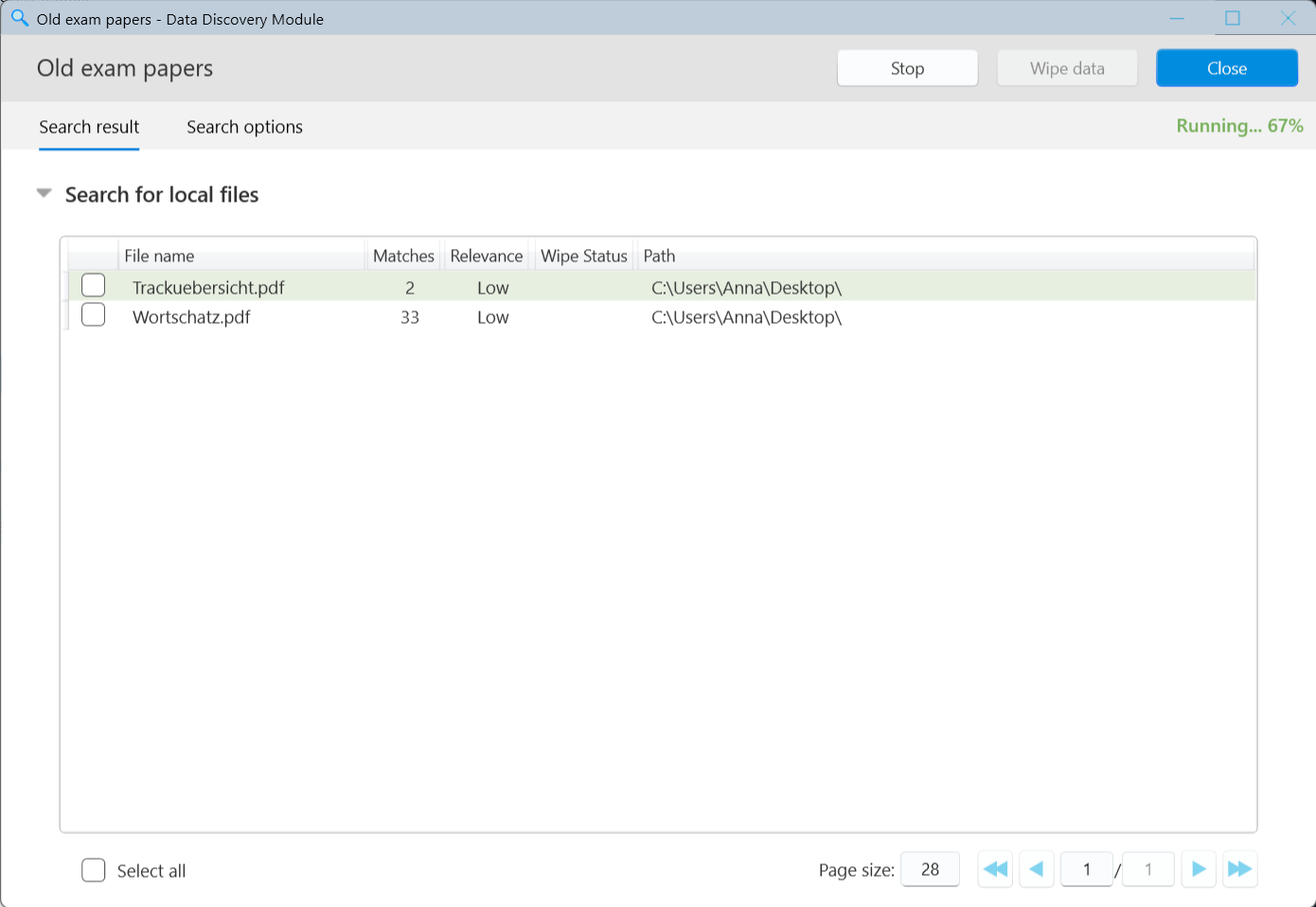
The search appears in the list with the status Running… N%, and the Search Details window opens automatically.
Step 5. Review the Results
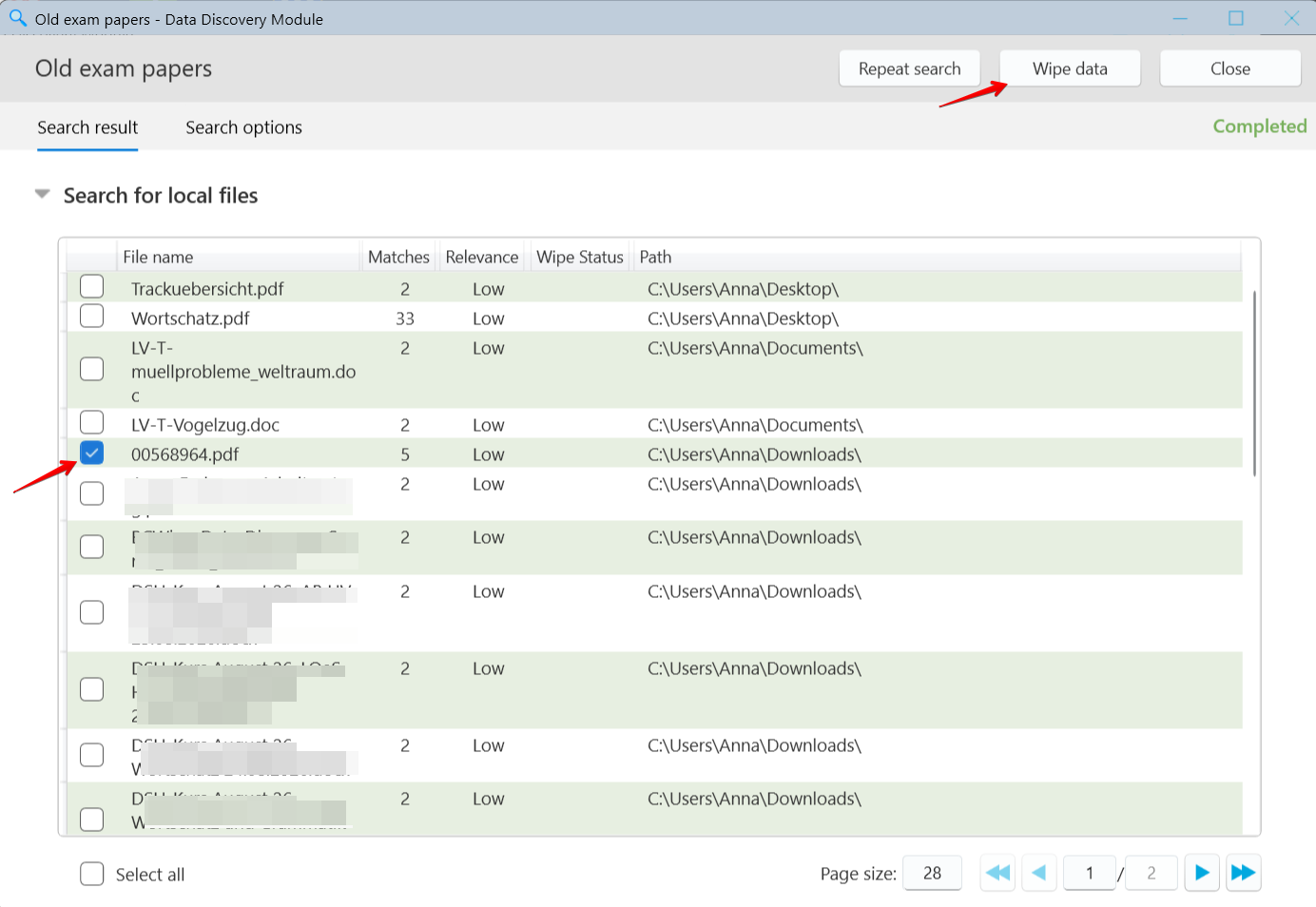
Matching files appear in the Search result tab as they are found. You can review them while the search is running.
When the search finishes, its status changes to Completed.
Double-click a file in the results table to open it in its associated application.
To review the results later, select the search in the main window and click View. To run it again, click Repeat.
For details, see Search Results and Search History.
Step 6. Securely Erase Unwanted Files (Optional)
If you find files you no longer need:
- Select the files using the checkboxes in the results table.
- Click Wipe data.
- In the Wipe data window, select a Wiping scheme.
- Click Wipe selected to confirm secure erasure.
WARNING: Wiped files cannot be restored. Before you continue, make sure the selected files are no longer needed.
After wiping, review the Wipe Status column to check the outcome for each file.
For detailed instructions, see Secure Deletion of Found Data.
What's next
Search Interface and Controls: Learn about the main window and its controls.
What Information Can Be Found: Explore the available search filters and how to use them.
Search Results: Learn how to review matching files.
Search History: Manage searches and repeat previous queries.