Search results
When you start a search, a separate Search Details window opens automatically. The window title matches the name of your search.
To open the results of an existing search, select it in the list of searches in the main window and click View.
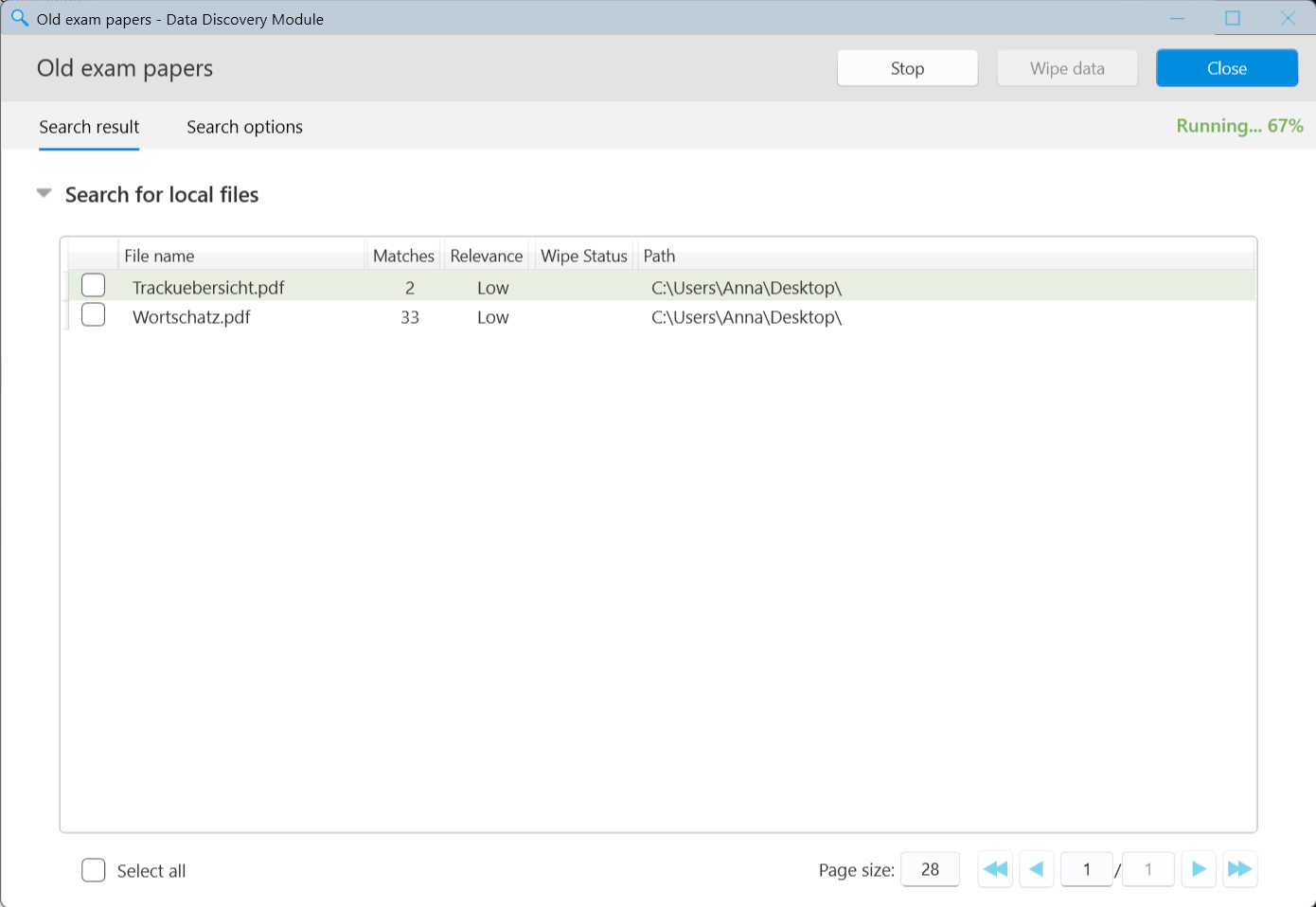
The upper part of the window displays the search name and the following controls:
- Stop: Stops a search that is currently running.
- Wipe data: Securely erases selected files from the search results. This button becomes available after the search is completed and at least one file is selected. For details, see Secure Deletion of Found Data.
- Close: Closes the results window.
The window also contains two tabs:
- Search results: Displays the files found during the search.
- Search options: Displays the filters and settings used for the search.
While a search is running, its status and progress are displayed in the upper-right corner of the window, for example, Running... 55%. Matching files appear in the results table as they are found, allowing you to review them before the search is completed.
Search Results
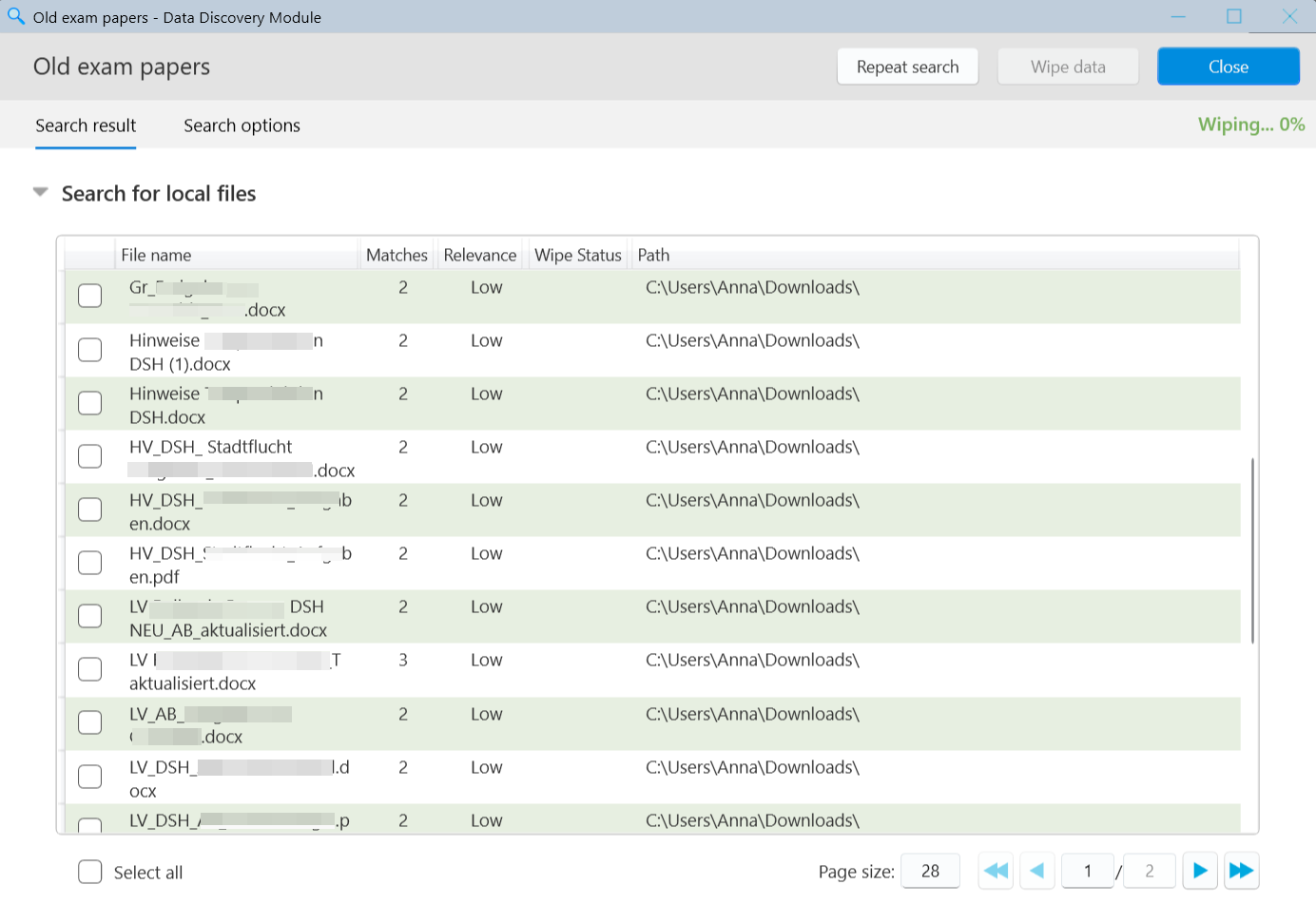
The Search result tab displays the files found during the search in a table with the following columns:
- Checkbox: Selects a file for further actions, such as secure erasure. To select all files, use Select all below the table.
- File name: The name of the matching file, without its full path.
- Matches: The number of matches found in the file.
- Relevance: Indicates how closely the file matches the search criteria, where applicable.
- Wipe Status: Displays the outcome of a secure erasure operation. See Secure Deletion of Found Data.
- Path: The full location of the file on your computer.
Note: The information displayed in the Matches and Relevance columns depends on the filters used in the search.
Navigating Search Results
If a search returns many files, the results are divided into pages. Use the navigation buttons below the table to move between pages.
To change the number of files displayed on each page, adjust the Page size field.
Opening a Found File
To open a file from the search results, double-click its row in the table. The file opens in the application associated with its file type on your computer.
Securely Erasing Found Files
After the search is completed, you can select individual files or all files in the results and securely erase them using BCWipe.
For step-by-step instructions, see Secure Deletion of Found Data.