Secure deletion of found data
BCWipe Search helps you find sensitive or outdated files that you no longer need to keep. Once you have reviewed the search results, you can securely erase selected files directly from the details window.
Unlike standard file deletion, which generally leaves file contents recoverable, secure deletion (wiping) is designed to prevent data recovery. BCWipe Search uses BCWipe to perform the wiping operation.
How to securely erase found files
- Run a search and open its results. See Search Results.
- In the results table, select the files you want to erase using the checkboxes next to them. To select all files across all pages of the results, click Select all below the table.
- Click Wipe data. This button becomes available once the search is completed and at least one file is selected.
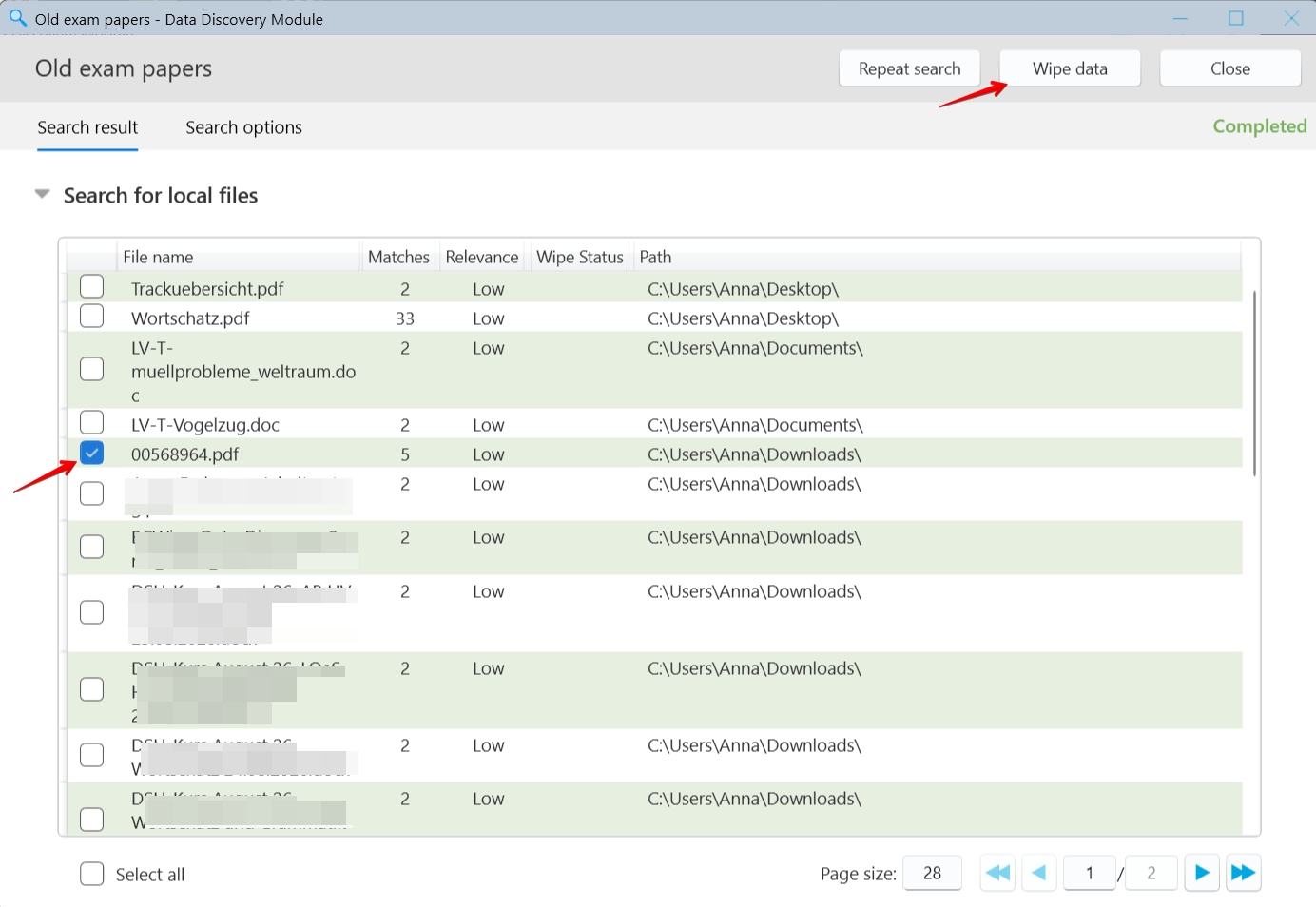
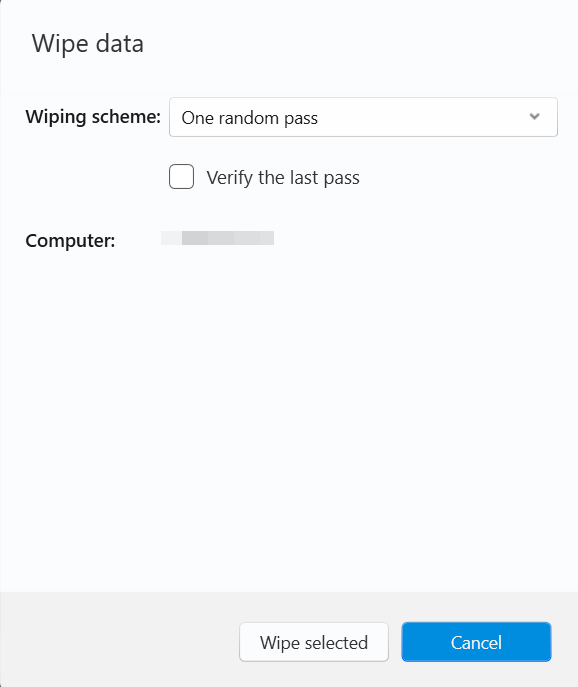
In the Wipe data window, the following options are configurable:
- Wiping scheme: the method used to overwrite the files. Choose a scheme from the list, for example One random pass (default), U.S. DoD 5220.22-M(E), German BCI/VSITR or Peter Gutmann. For details about the schemes, see Wiping options and Wiping Scheme Editor.
- Verify the last pass: after wiping, BCWipe checks that the last pass was written. For details, see Wiping options.
WARNING: Wiped files cannot be restored. Before you continue, make sure the selected files are no longer needed.
To confirm secure erasure of the selected files using the specified settings, click Wipe selected. Otherwise, click Cancel to close the window without erasing any files.
TIP: If you want a detailed record of the wiping, enable logging in BCWipe before you click Wipe selected. See Wiping log below.
Wiping Progress
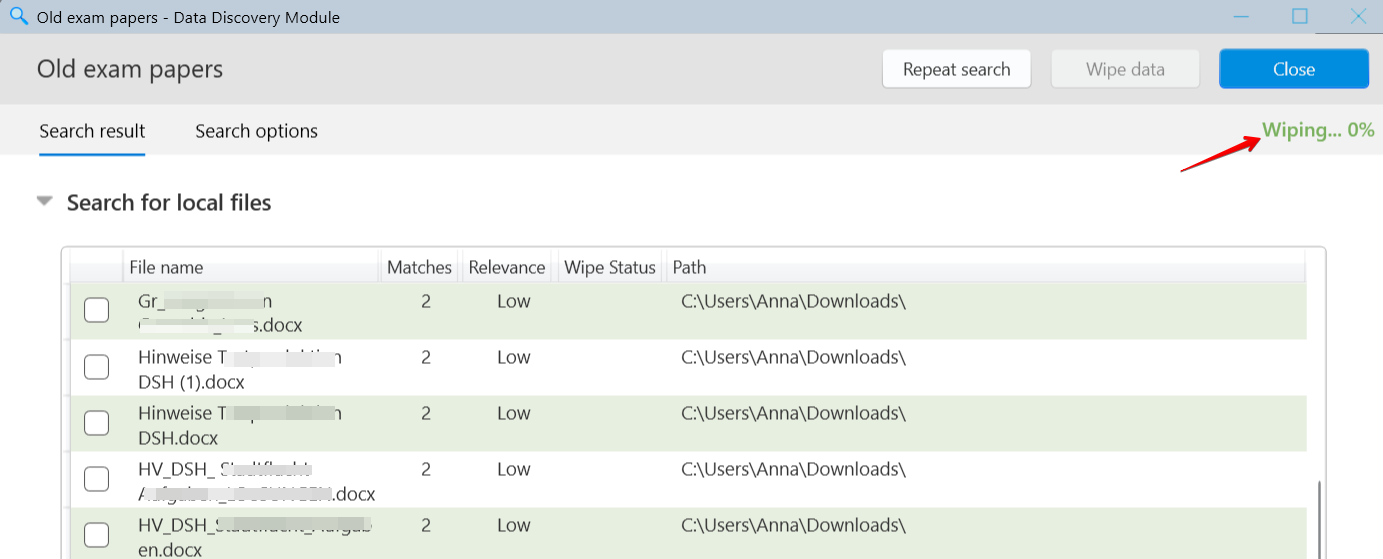
While the wiping operation is running, the status Wiping... N% appears next to the search in the list of searches and in the upper-right corner of the Search Details window.
The Wipe data button remains unavailable until the operation finishes.
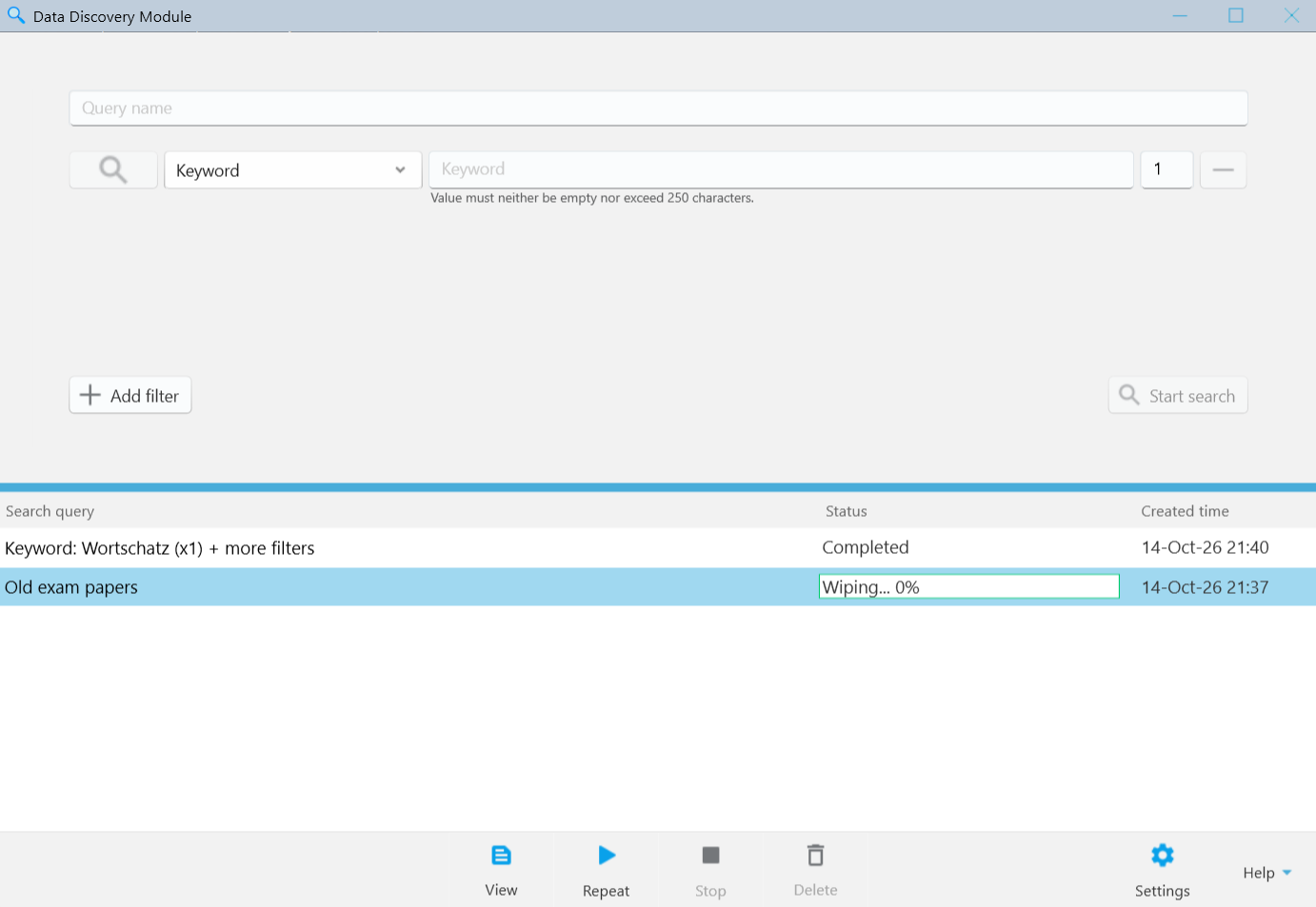
Each wiping operation also appears as a separate task in BCWipe Task Manager, named Data Discovery Module: wipe results.
Wiping status of files
After wiping starts, the Wipe Status column in the search results table displays the status of each selected file.
- Success - the file was securely erased.
- Error - the file could not be erased. If logging was enabled, open the log to see the reason. See Wiping log.
- Drive unavailable - the drive containing the file is not accessible, for example, because an external or network drive was disconnected after the search. Reconnect the drive and run the search again.
- Cancelled Wiping of the file was cancelled before it was completed. The file was not erased.
NOTE: Only files with the status Success are confirmed as securely erased.
You can click Repeat in the main window to run the same search again and check whether previously found files still appear. However, search results alone do not verify secure erasure. For that check the wiping status.