How to enable Search in BCWipe
BCWipe Search (Data Discovery Module) is installed as an add-on to BCWipe. It does not require a separate installation package or activation.
During beta testing, BCWipe Search is distributed through the BCWipe Beta installer.
NOTE: The beta version is available to registered beta testers only. Beta software may contain issues and is not recommended for production use.
Step 1. Get access to the beta
- Request access using the beta testing form on the BCWipe beta page. If you already use BCWipe, you may also receive an email invitation to participate.
- After submitting your request, you will receive a link to the BCWipe Beta installer.
- Download the installer using the provided link.
NOTE: Beta releases are not distributed through BCUpdate and will not appear in regular BCWipe update notifications.
Step 2. Install BCWipe Beta with Data Discovery
The BCWipe Beta installer includes both BCWipe and BCWipe Search.
- If BCWipe is already installed: The installer updates your existing installation to the beta version and adds BCWipe Search. Your existing BCWipe license remains in use.
- If BCWipe is not installed: The installer installs BCWipe Beta together with BCWipe Search.
To install:
- Run the downloaded installer.
- Follow the Setup Wizard. The License Agreement, Destination Location, Select Program Folder, and License Information steps work as in the regular BCWipe installation. For details, see How to Install BCWipe.
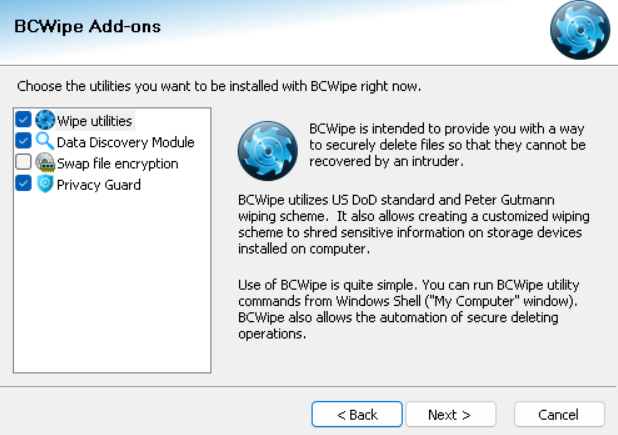
- On the BCWipe Add-ons page, make sure Data Discovery Module is selected. This option is selected by default.
- Complete the installation.
Licensing
Data Discovery uses the license of BCWipe installed on your computer. When the demo period ends, Data Discovery will no longer start.
Step 3. Start the search module
You can start BCWipe Search in either of two ways:
- Open BCWipe and click the Search section in the side panel.
- Open the Start menu and select Data Discovery Module from the list of installed apps.
Next, see Quick Start to run your first search.