Search Interface and Controls
This article provides an overview of the BCWipe Search interface, including the controls used to configure searches, manage search tasks, and review results.
For step-by-step instructions on running your first search, see Quick Start.
Main Window
The main window of BCWipe Search is divided into two areas:
- Search configuration area: The upper section, where you define search criteria and start new searches.
- List of searches: The section below the search configuration area, where you can monitor ongoing searches, review completed searches, and manage search tasks.
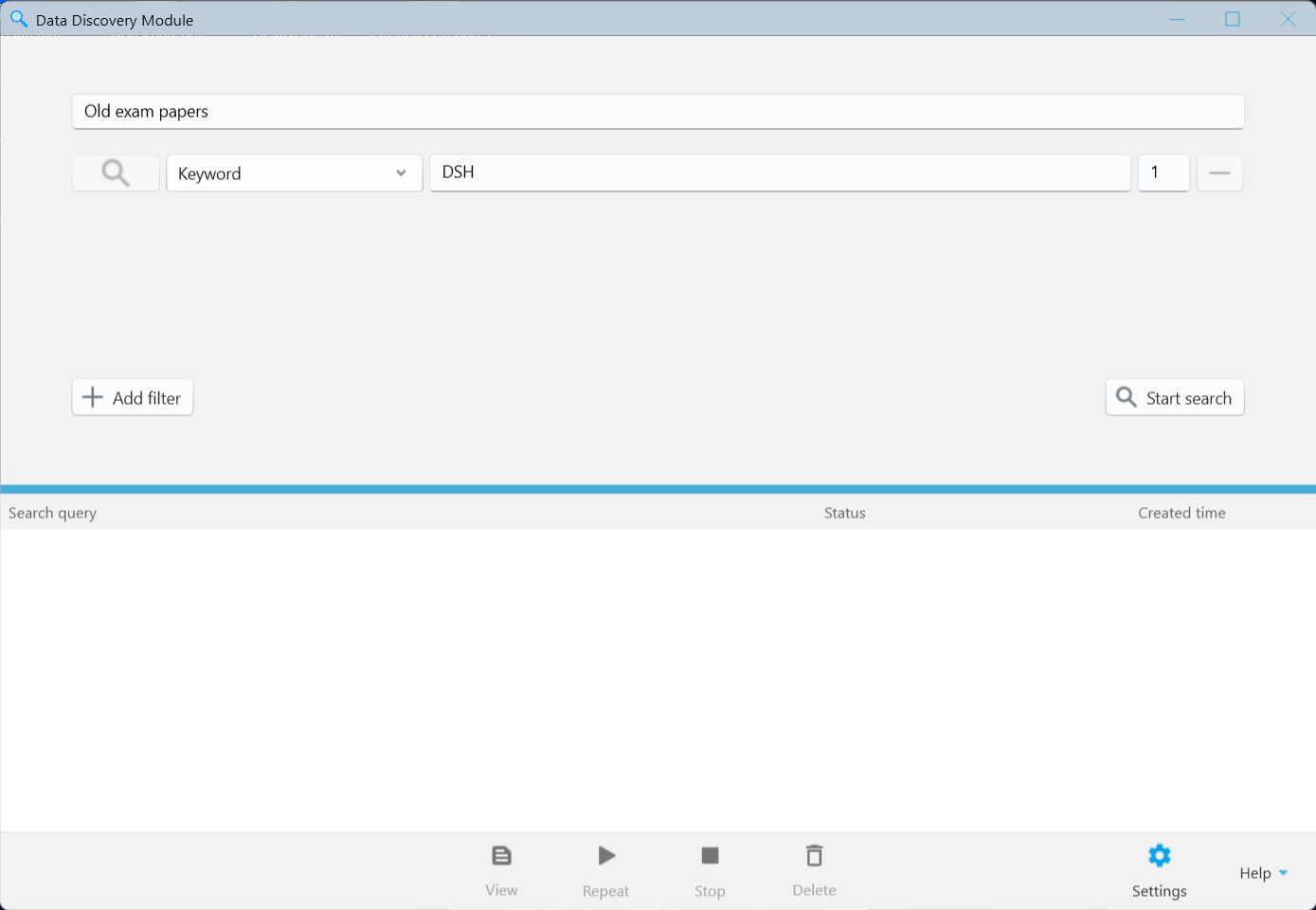
Setting Up a Search
- Query name: an optional field at the top of the window. Enter a name that describes your search, for example "Recent invoices". If you leave it empty, the name is created automatically from the first filter, for example "Keyword: Invoice (x1) + more filters".
- Filter row: each row is one search criterion (a filter). A row can contain:
- Operator: available from the second row. Choose AND or NOT to combine or exclude search conditions.
- Filter type: a drop-down list where you choose what to search for.
For a detailed description of the available search filters and how to use them, see the What Information Can Be Found chapter. - Value: a text field, dropdown list, or button for specifying the search value. A hint below the field may indicate the required format.
- Threshold number: available for Keyword and Dictionary filters. Specifies the minimum number of matches required in a file.
- Remove (—): removes the filter row.
- Add filter: adds a new filter row.
- Start search: starts the search using the configured filters. The button becomes available when all filter values are valid. For example, a Keyword value cannot be empty or exceed 250 characters.
Combining filters
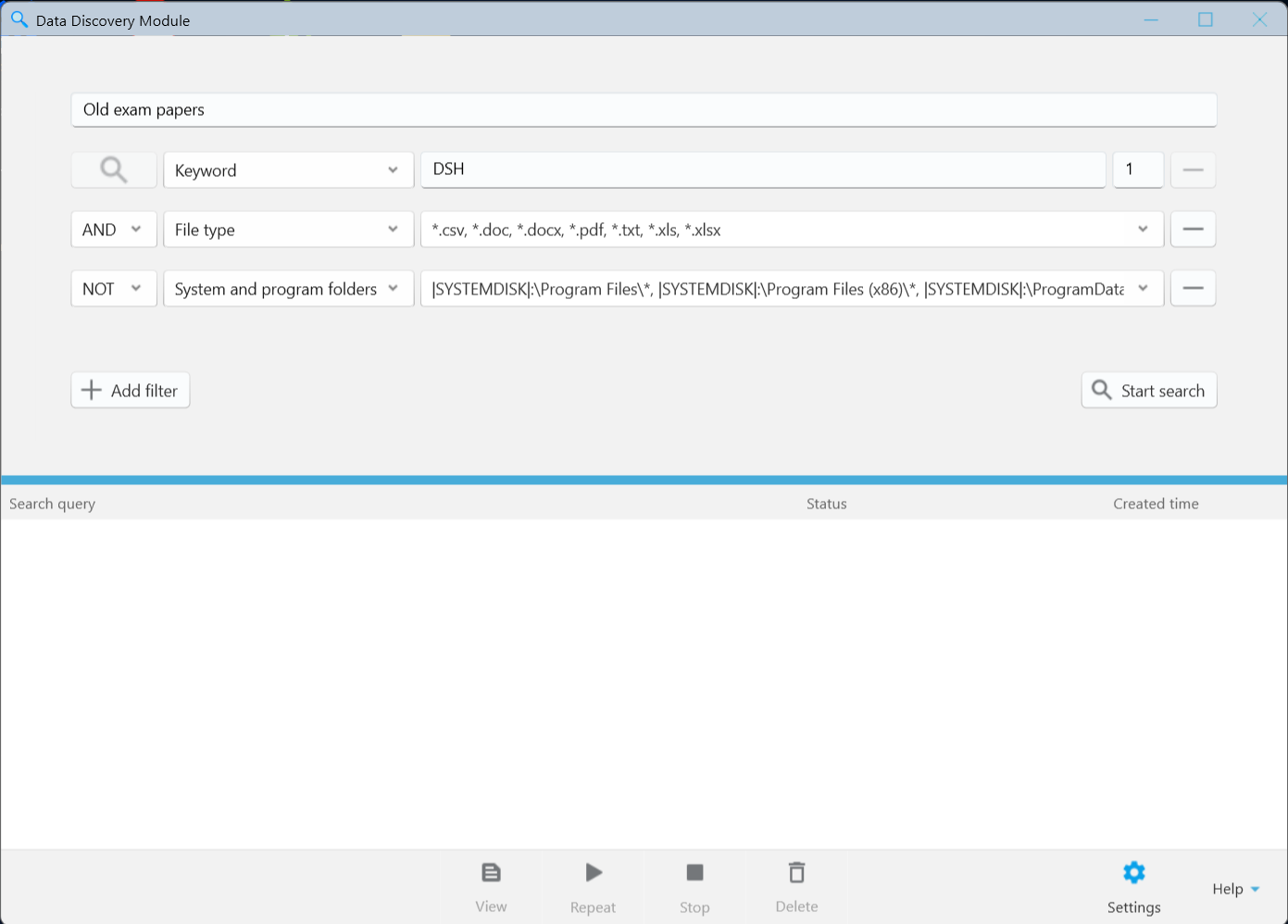
You can combine multiple filters to narrow your search. Each filter defines a condition that a file must meet or must not meet to appear in the results.
Two operators are available:
- AND: The file must meet this condition in addition to the other search conditions.
- NOT: Files that match this condition are excluded from the results.
For example, to find PDF files containing the word invoice, excluding files stored in the Public folder, configure the following filters:
- Keyword: invoice
- AND File Type: .pdf
- NOT File Path: C:\Users\Public\*
List of searches and toolbar
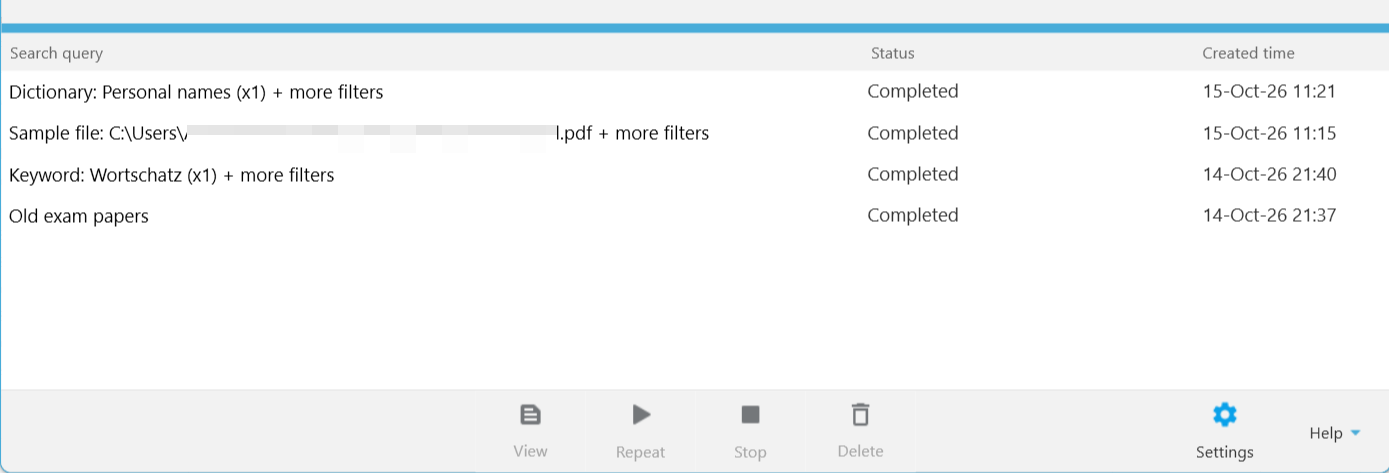
Below the search configuration area, you can find a list of all searches, including those currently running and previously completed. The list displays each search's name, status, and creation time.
Select a search to activate the available toolbar controls. You can view its results, repeat or stop the search, or remove it from the list. For details, see Search History.
Click View to open the Results window, where you can review the files found and the search criteria used. For details about working with the results, see Search Results.
Additional Controls
- Settings: Opens the app settings.
- Skip indexing drives: by default, the module indexes files on all drives. To leave some drives out of indexing, select them in this list. You can select several drives.
- Registration: shows the license the module uses. The Data Discovery Module is installed with BCWipe and uses the BCWipe license.
Administrative privileges are required to save the settings. Restart your computer for the new settings to take effect.
- Help: Opens a menu with the following options:
- User Guide: Opens this documentation.
- About Data Discovery Module: Displays the module version and Jetico Technical Support contact details.